PowerLesson 2 enables teachers to conduct lessons efficiently by projecting their screens to student computers, inviting students for instant polling, discussion, audio / video recording, etc. Real-time analysis on students’ response helps teachers understand common answers / errors students make. Thus, it can cater to learner diversity and foster a close interaction between teachers and students.
With PowerLesson 2, all the lesson contents can also be recorded. Therefore, students can revise the contents after school while teachers can edit and reuse the lesson plan, or even share the resources among colleagues.
1. Installation
- Login to your eClass Teacher Account and navigate to PowerLesson.
- Go to the Lesson that you would like to deliver.
-
Click the Magic Wand (Located at the top right hand corner) > Zoom.
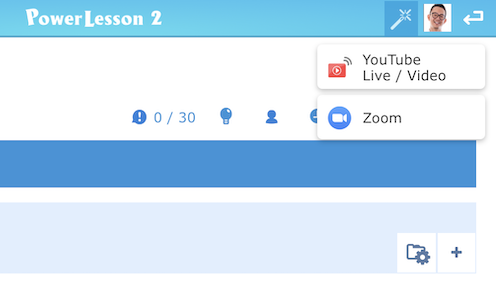
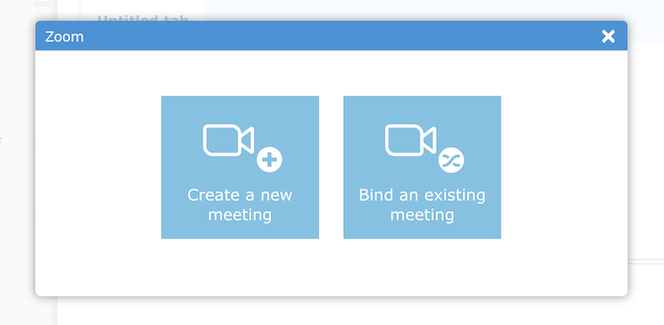
- A modal box will be shown after clicking the button.
-
Either click the Create a new Meeting button or Bind an existing meeting button.
-
A popup window will be shown to ask for your authorization. Please click Authorize if you would like to use Zoom in PowerLesson.
You may require to login your Zoom account if your session is expired.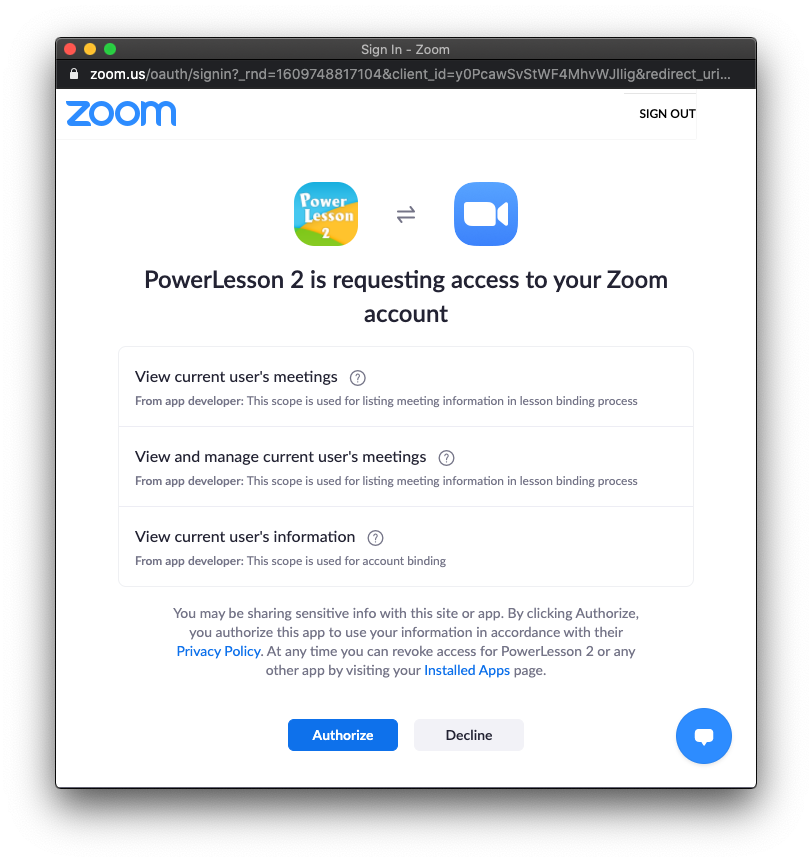
2. Usage
Binding a Zoom meeting with Lesson
There are two ways to bind a Zoom meeting with the current Lesson.
-
Create a new Meeting
- Click the Magic Wand > Zoom > Create a new Meeting.
- A new Zoom meeting with the same title as the lesson will be created and bound with the current lesson.
-
Bind an existing meeting
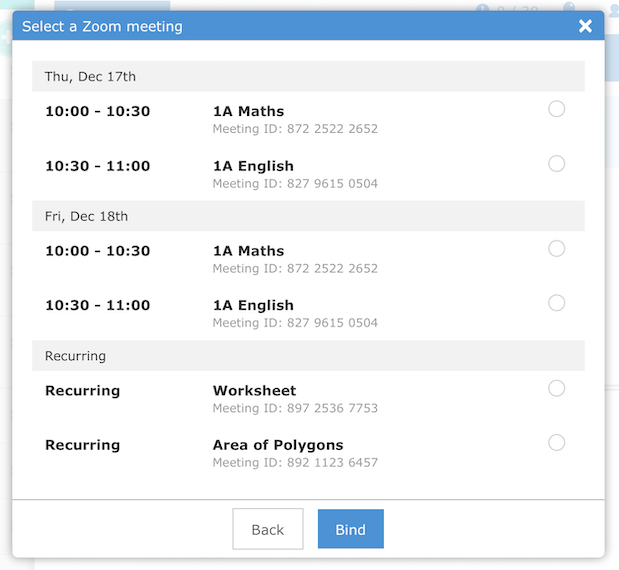
- Click Magic Wand > Zoom > Bind an existing meeting.
-
Select a meeting that you would like to bind with the lesson and click Bind.
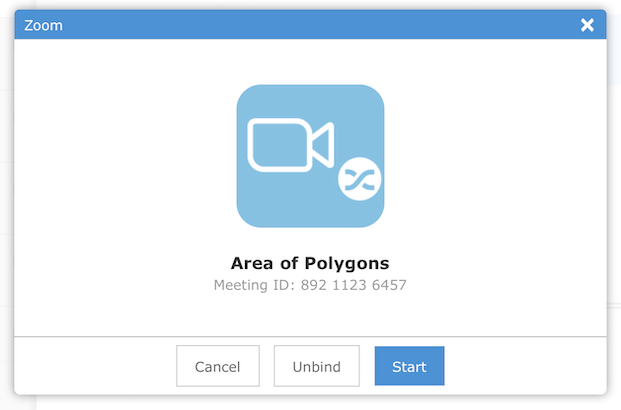
Start the Zoom meeting
- Click Magic Wand > Zoom.
-
Details of the Zoom meeting will be shown and Click Start to begin the Zoom meeting.
3. Uninstallation
- Login to your Zoom Account and navigate to Zoom App Marketplace.
- Click Manage > Installed Apps or search for the PowerLesson app.
- Click the PowerLesson app.
- Click Uninstall.
Last modified: 04 January 2021